QR code won't scan
Quick answers
- Why won't the QR code scan?
- Usually camera permission, glare, or a code that's too small on screen. Grant camera access, steady the phone in good light, or type in the setup key instead. Every service that shows a QR code also shows a text key.
- What if the QR code is for importing accounts from another app?
- A migration or export QR (for example from Google Authenticator) is scanned the same way, with Add → Scan QR, and is recognized automatically.
If the QR code won't scan, the most common causes are camera permission, glare, or a code that's drawn too small. Grant camera access, steady the phone in good light, or add the account by hand with the setup key instead, which needs no scan at all.
Symptom
"I am getting an error while scanning the QR code / entering the key."
This is the current #1 support issue on the app, more common than any other single problem in 2026.
Why this happens
A scan usually fails for one of four reasons:
- The app doesn't have camera permission yet.
- Glare, low light, or a shaky hand. These break any barcode scan, not just this one.
- The QR code on the service's page is drawn very small, and the camera can't read it from a normal distance.
- It's an export or migration QR from another authenticator (for example Google Authenticator's "Transfer accounts" QR). It holds several accounts at once, but it uses the same Add → Scan QR flow. It isn't a different feature, just a different kind of QR code.
Fix
- Make sure camera access is granted: open your phone's Settings → Apps → TOTP Authenticator → Permissions → Camera.
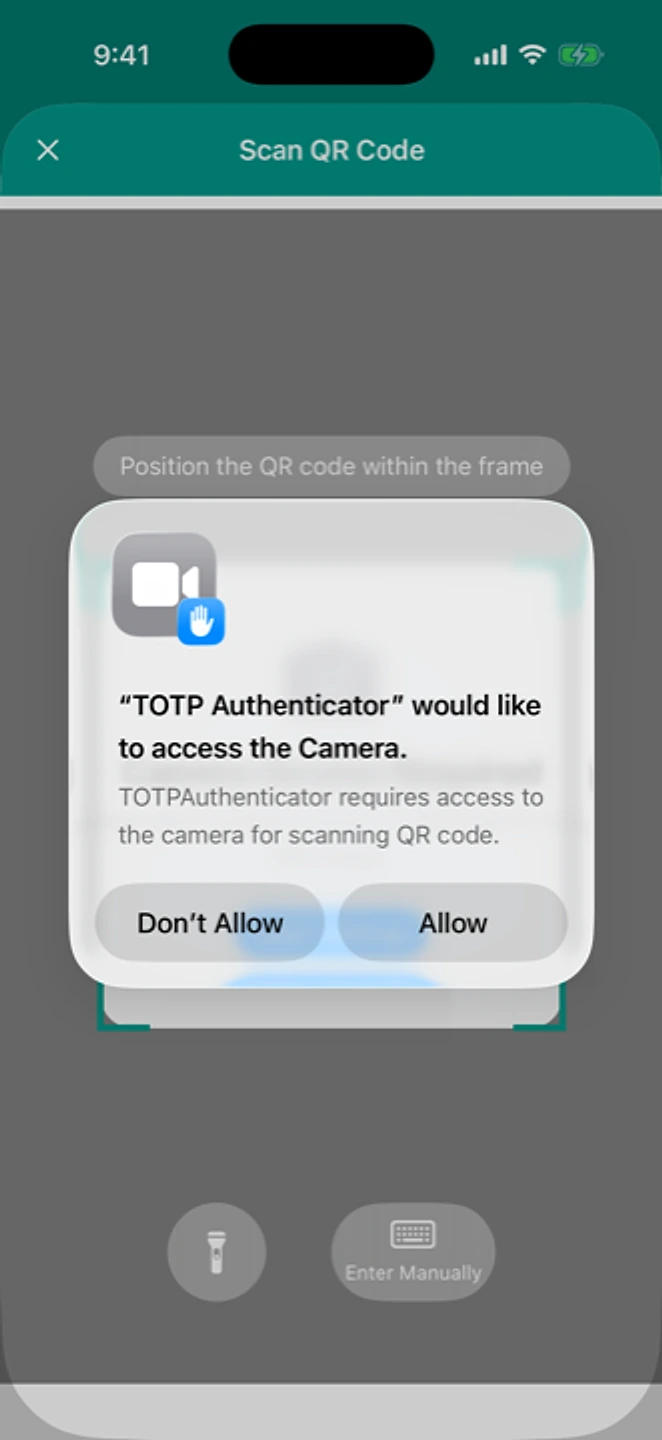
The app asks for camera access the first time you scan. - Increase screen brightness on the device showing the QR, hold your phone steady, and fill the camera frame with the code.
- If the code is small, zoom in on the source page first, or view it on a larger screen.
- For a migration or export QR from another app, use Add → Scan QR the same way. It's recognized automatically. See switching from Google Authenticator.
- If scanning still won't work, choose "Enter setup key manually" and type in the text key the service shows next to its QR.
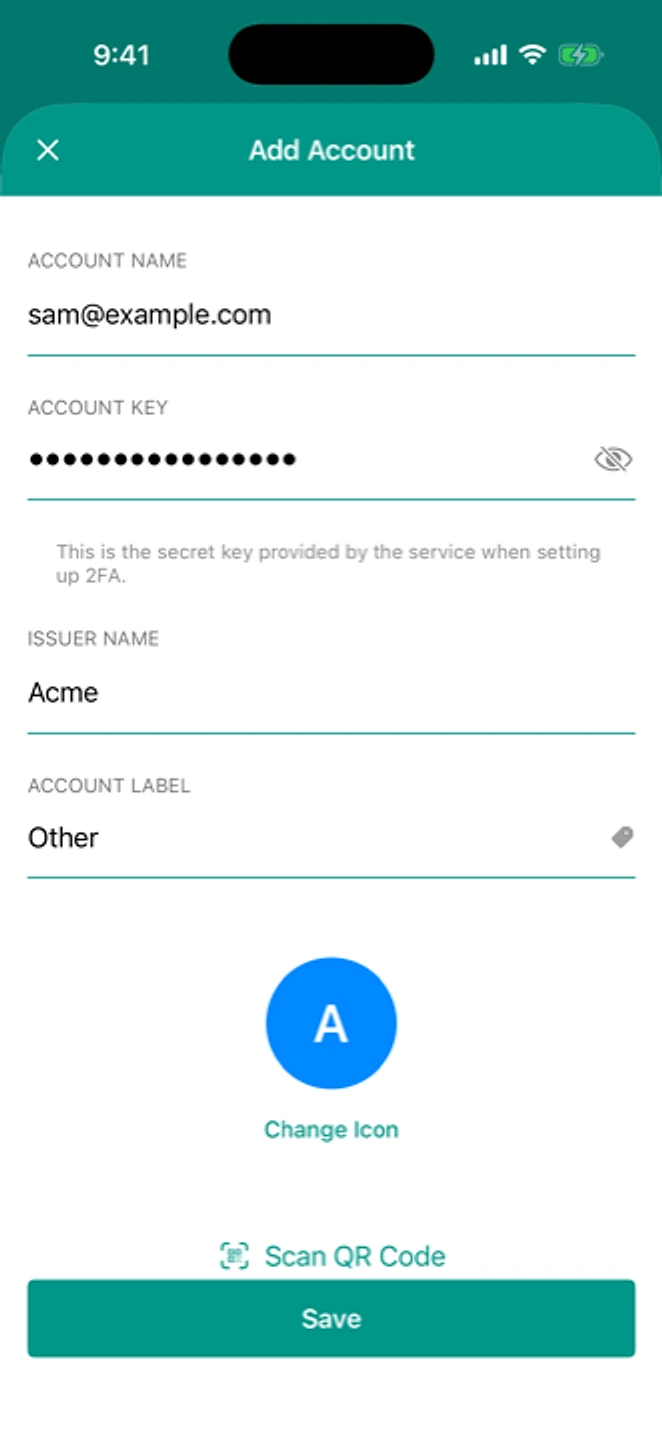
Typing the setup key in by hand works when the camera won't cooperate.
If that didn't work
If typing the key also fails, the service may use a format the app doesn't recognize yet. Contact support with the service's name and we'll look at adding it.
Related: Restoring on a new phone · Import didn't bring everything · Switch from Google Authenticator · Help centre