Backup and restore
Offline backup and restore are free on both platforms, with no purchase or account required. Create a backup file from Settings, save it somewhere you control, and restore it on any device with the app installed. Cloud Sync is a separate, paid way to do this automatically.
Creating a backup
- Open Settings → Backup.
- Create an offline backup.
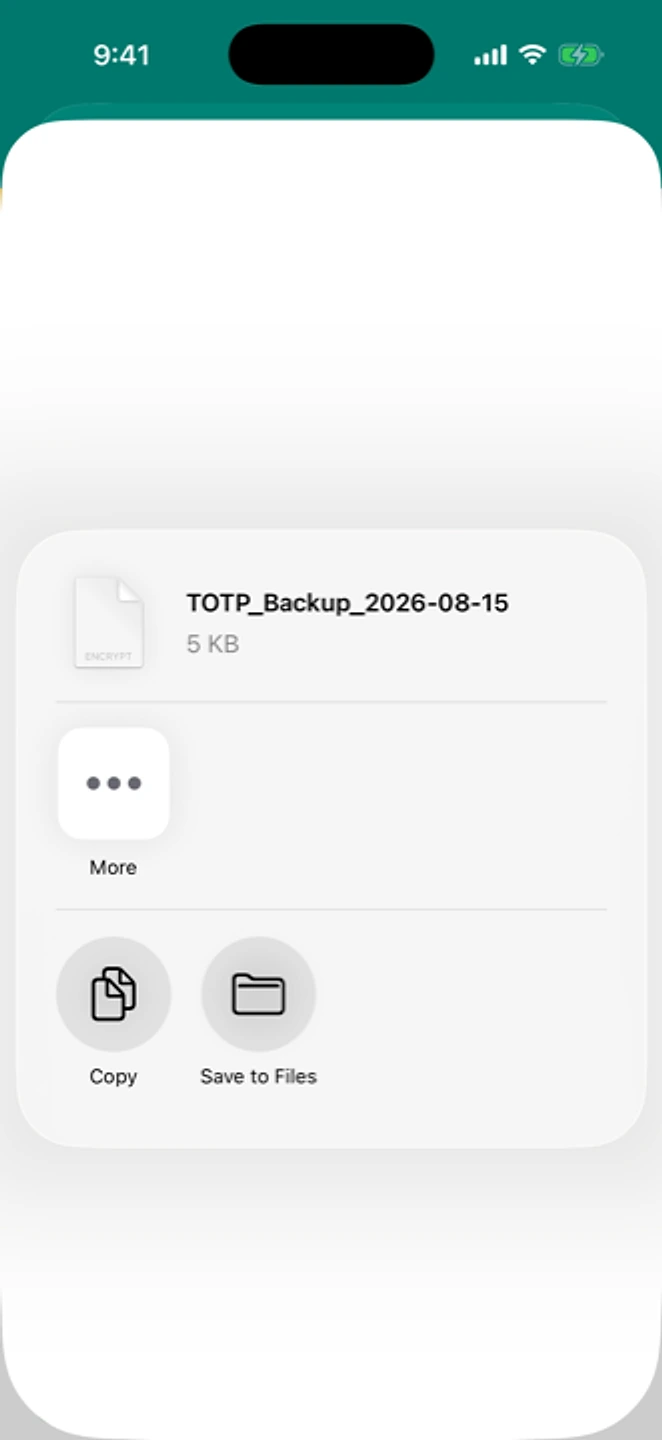
- Choose where it goes: "Share Backup" sends it to another app (Drive, Files, email), or pick a custom folder. Avoid the default location if you're planning to switch phones. See the warning below.
Restoring a backup
- Install the app on the device you want to restore to.
- Open Restore and choose the backup file's location.
- Select the file.
- Verify every account's code matches before you remove the app anywhere else.
Cloud Sync: the paid alternative
Cloud Sync (iCloud on iOS, Google Drive on Android) is a one-time purchase, per platform, that syncs your accounts automatically instead of a manual file. Auto Sync runs whenever you add, update, or remove an account, and you can also sync by hand. It doesn't bridge platforms: an iOS Cloud Sync account and an Android one are separate. See /pricing.
If something isn't working
See backup isn't working or restoring on a new phone. If you've hit the historical Android storage bug, see "permission denied" (fixed).
Related: Moving to a new phone · Getting started · Pricing
Quick answers
- Is backup and restore free?
- Yes. Offline backup and restore are free on both platforms, with no purchase or account required. Cloud Sync is the paid, automatic alternative.
- Where should I save my backup?
- Use Share Backup or a custom folder, not the Android default location. On Android 11 and newer, the default-location backup is deleted when the app is uninstalled and hidden from file managers.