Getting started
Getting started takes three steps: add an account by scanning a QR code, watch the 30-second code refresh, and back it up so you never depend on this one device. None of it requires an account with us or a purchase.
1 · Add an account
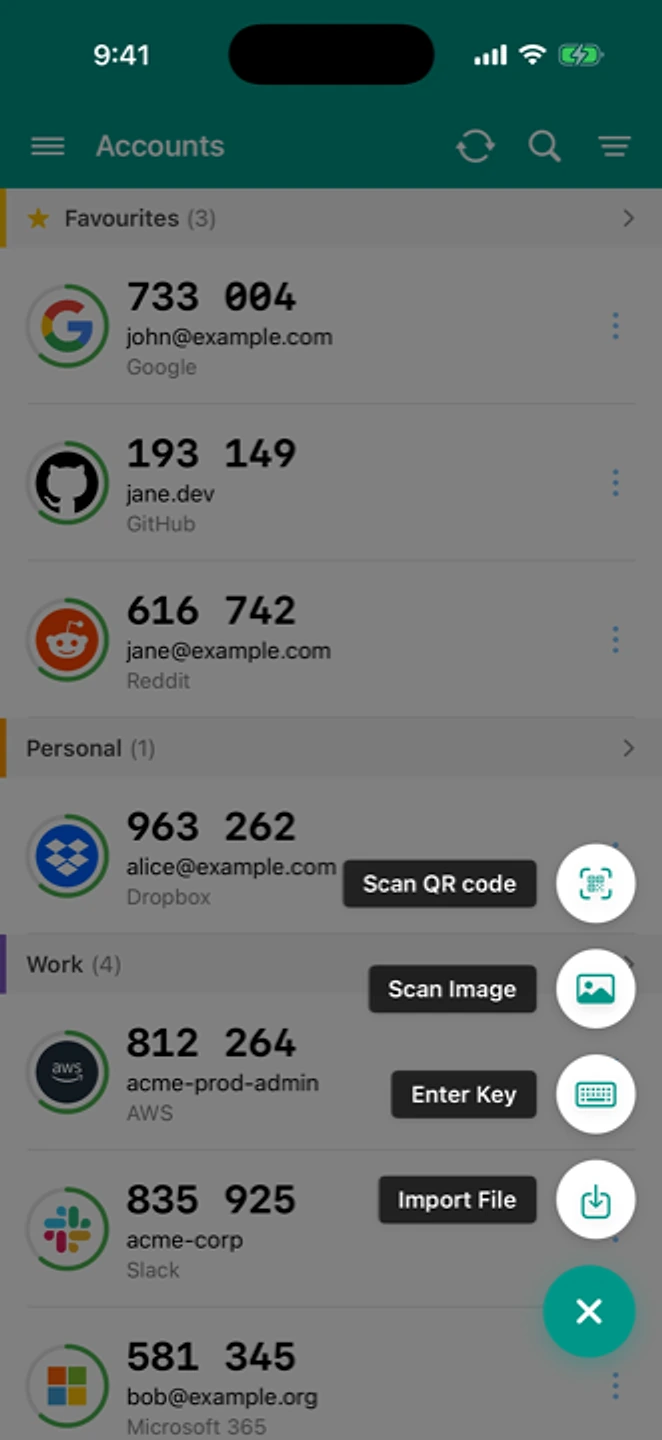
Turn on two-factor authentication on the service you want to protect. It will show you a QR code (and usually a text key alongside it). In TOTP Authenticator, tap Add → Scan QR and point the camera at it. If you can't scan, choose "Enter manually" and type the key in instead. Any service that supports 2FA with Google Authenticator works the same way here.
2 · Understand the code
Each account shows a 6-digit code with a ring counting down 30 seconds. That's how long the code stays valid before the app generates the next one. This is standard TOTP (RFC 6238): the code comes from a secret only your device holds, combined with the current time. If a code is ever rejected, it's almost always the device clock rather than the code. See wrong time / codes rejected.
3 · Back it up
Do this before you need it, not after. An offline backup file is free and takes a few taps: Settings → Backup. Cloud Sync (iCloud on iOS, Google Drive on Android) is a paid, one-time purchase that syncs automatically instead of a manual file. It's a convenience, not a requirement: the free backup alone is enough to never lose access. See backup and restore for the full guide.
Moving to a new phone later
When you do get a new phone, the same free options apply. The moving to a new phone guide covers each situation on its own, so you only read the part that matches yours.
Related: Backup and restore · FAQ · Help centre
Quick answers
- How do I add my first account?
- Scan the QR code the service shows when you turn on two-factor authentication, or enter the setup key manually if scanning is not available. Both produce the same result.